
Plenty of founders run more than one business. A second company, a new branch in another city, a franchise, a family business you help with on weekends. Until now, each one in Piplhr meant a separate sign-up, a separate login, and logging out of one to check on the other.
Multiple Workspaces fixes that. It's now live in Piplhr: one phone number, as many workspaces as you need, and a single tap to move between them. Each workspace keeps its own people, tasks, roles and reports, so nothing from one business leaks into another.
What a workspace is
A workspace is one company in Piplhr. It has its own org chart, people, teams, job roles, SOPs, training, tasks, KPIs, letters and settings. It also has its own plan and billing.
What's new is that you are no longer tied to a single workspace. Your login belongs to you, and you can belong to several workspaces with it: as an admin in some and an employee in others, if that's how your work is set up.
Who it's for
- Founders with more than one company, who want both under one login without mixing their data.
- Businesses with branches or units that run as separate teams, each with its own structure and reporting.
- Consultants and accountants who set up and run Piplhr for several client businesses.
- People who work for two employers, such as a part-time role alongside a main job. Each employer adds them by phone number, and they sign in once to see both.
Sign in once, pick your workspace
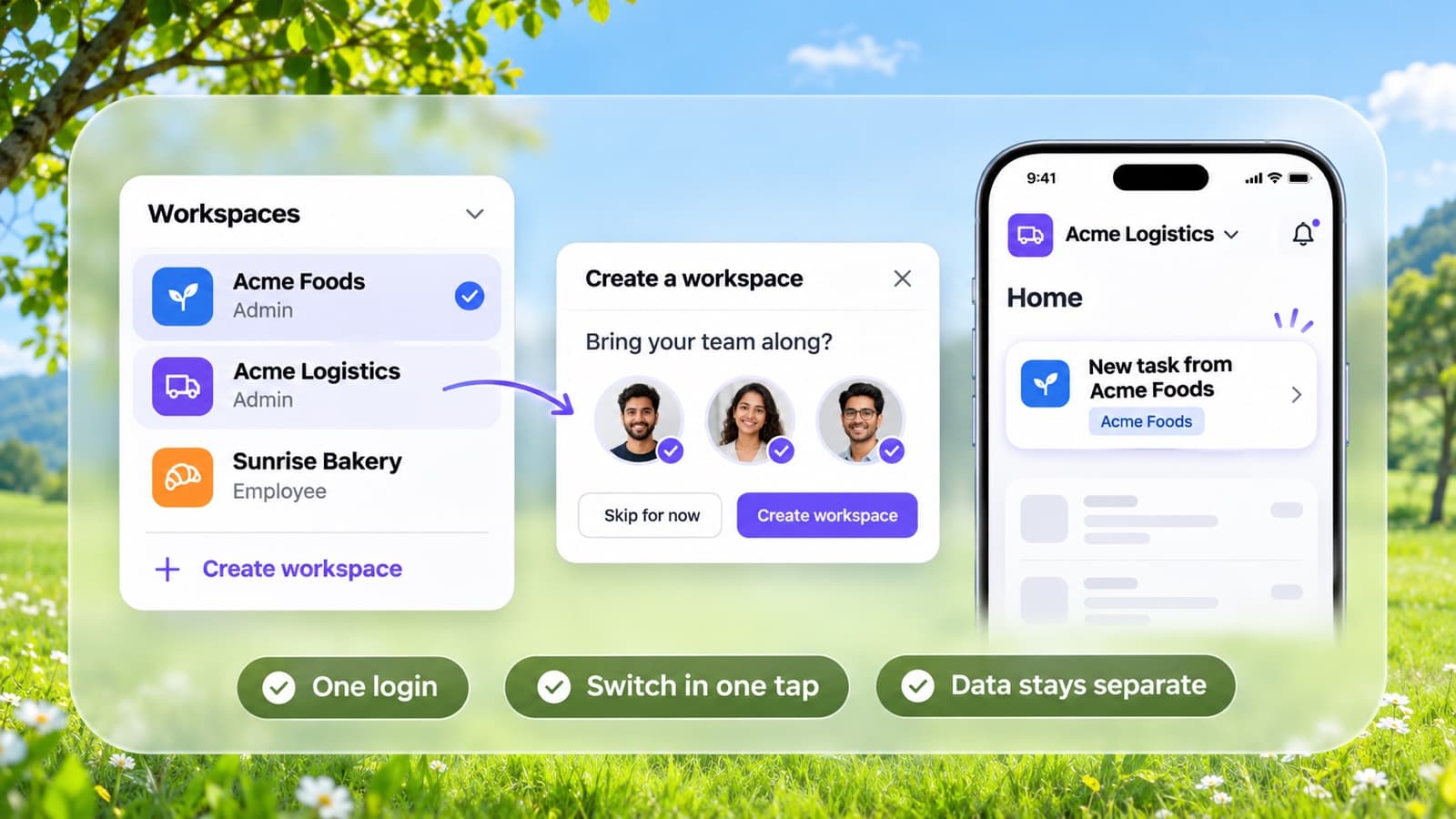
You still sign in the same way: your phone number and a one-time code. If you belong to more than one workspace, Piplhr shows them all after you sign in, each with its logo, your role there and when you last used it. Pick one and you're in.
If you only belong to one workspace, nothing changes. You go straight in, just as before.
Switch in one tap
You don't need to log out to move between workspaces.
- On the web, click your workspace logo at the top of the left rail. A list of your workspaces opens. Pick one and Piplhr reloads straight into it.
- On the mobile app, tap your workspace name at the top of the Home screen and choose another.
When you switch, Piplhr opens a clean copy of the other workspace. If you have Piplhr open in two browser tabs and switch in one, the other tab notices and reloads too, so you can never save something into the wrong company by mistake.
Create a new workspace in three steps
Admins can create a new workspace from the same menu: open the workspace list and choose Create workspace. It takes three short questions:
- What industry is this workspace in?
- How many people will use this workspace?
- What's it called? Use the name of the company or branch.
That's it. Piplhr carries over the setup answers from your existing workspace, so you don't have to fill in the onboarding questionnaire a second time. Every new workspace starts with its own free trial, just like a fresh sign-up, and you choose its plan separately.
Bring your team along
Starting a new branch rarely means starting with strangers. If you're an admin in another workspace, the last step asks "Bring your team along?" and lists the people you can copy across. Tick the ones you want and they're added to the new workspace with the same role they have today. Admins stay admins.
Missed someone? Open Add People in the new workspace and choose Add existing users to bring them over later.
People you add this way don't need a new login. Next time they sign in, the new workspace simply shows up in their list.
Notifications from every workspace
Your phone gets notifications from every workspace you belong to, not just the one that's open, so a task due in your second business doesn't slip past you.
Tap a notification and Piplhr opens the right workspace first, then takes you to the task or update. On the mobile app's Home screen you'll also see unread counts from your other workspaces, so you know when one needs a look.
Your data stays separate
Workspaces share your login and nothing else:
- People, tasks, roles, SOPs, training, reports and letters belong to one workspace and are never visible from another.
- Plans and billing are per workspace. Upgrading one doesn't change the others.
- Your role is per workspace. Being an admin in one gives you no access in another.
- Leaving or being removed from one workspace doesn't affect the rest. You keep signing in with the same number.
One thing is shared on purpose: your phone number and email. Once you're in more than one workspace, an admin can no longer change them for you. You change them yourself from your profile, confirmed with a one-time code, and the change applies in every workspace. That way no single company can take over a login you use elsewhere.
Get started
- Sign in to Piplhr as an admin.
- Open the workspace list: your logo on the web, or your workspace name on the mobile app.
- Choose Create workspace and answer the three questions.
- Bring your team along, or add people later.
- Switch back any time with one tap.
If you're setting up a second business from scratch, our guide to systemizing your business covers what to put in place first so it doesn't depend on you being there every day.